🚀 Why Upgrade from Windows Server 2012 R2?
Are you still running Windows Server 2012 R2 in your office or business server environment?
If yes, upgrading is important for:
✅ Better security
✅ Improved performance
✅ Modern server features
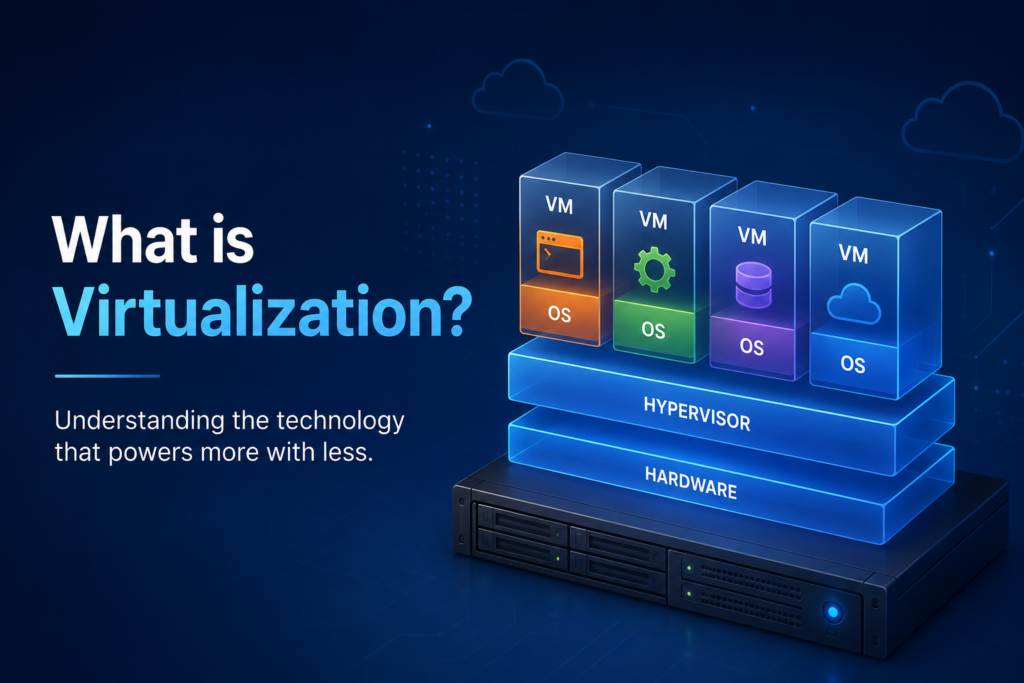
✅ Better virtualization support
✅ Long-term Microsoft support
✅ Improved stability for business applications
Older server systems eventually become risky because:
- Security vulnerabilities increase
- Compatibility issues appear
- New software stops supporting older servers
- Performance becomes limited
👉 አሮጌ ሰርቨር ሲስተም ለድርጅት አደጋ ሊፈጥር ይችላል።
The good news:
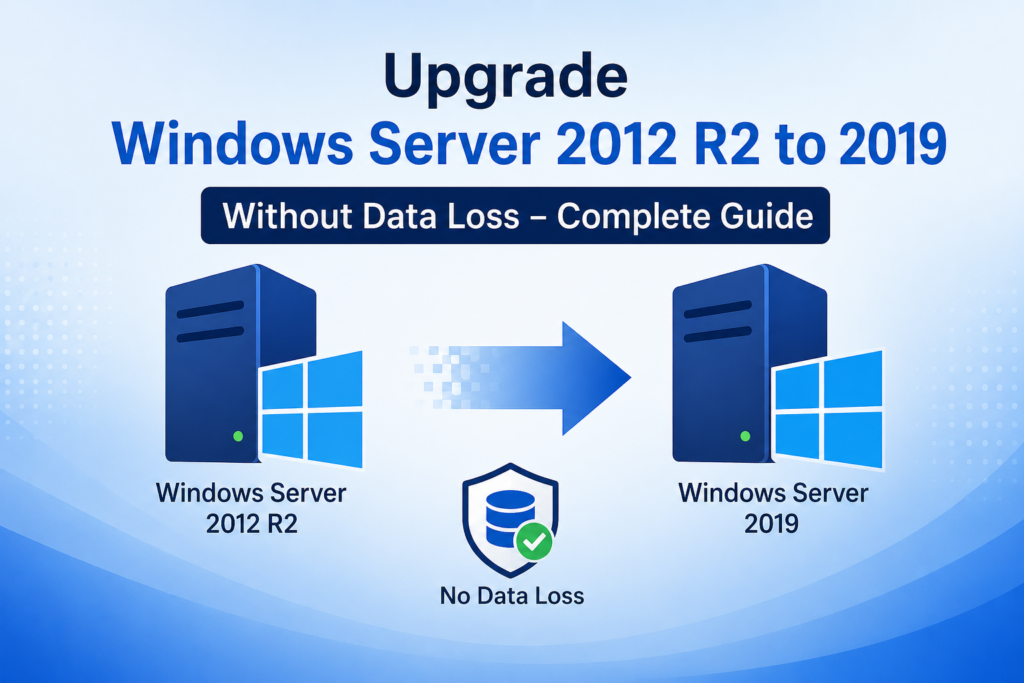
You can upgrade directly to Windows Server 2019 without losing data when done correctly.
⚠️ Before You Start: Important Checks
Before upgrading, verify:
1) Hardware Requirements
Confirm your server has enough:
- CPU capacity
- RAM (minimum 2 GB, more recommended)
- Disk space (at least 32 GB free, preferably much more)
- Driver compatibility
2) Check Installed Roles
Review active server roles such as:
- Active Directory
- DNS
- DHCP
- File Server
- IIS Web Server
- Hyper-V
Make sure they are supported on Windows Server 2019.
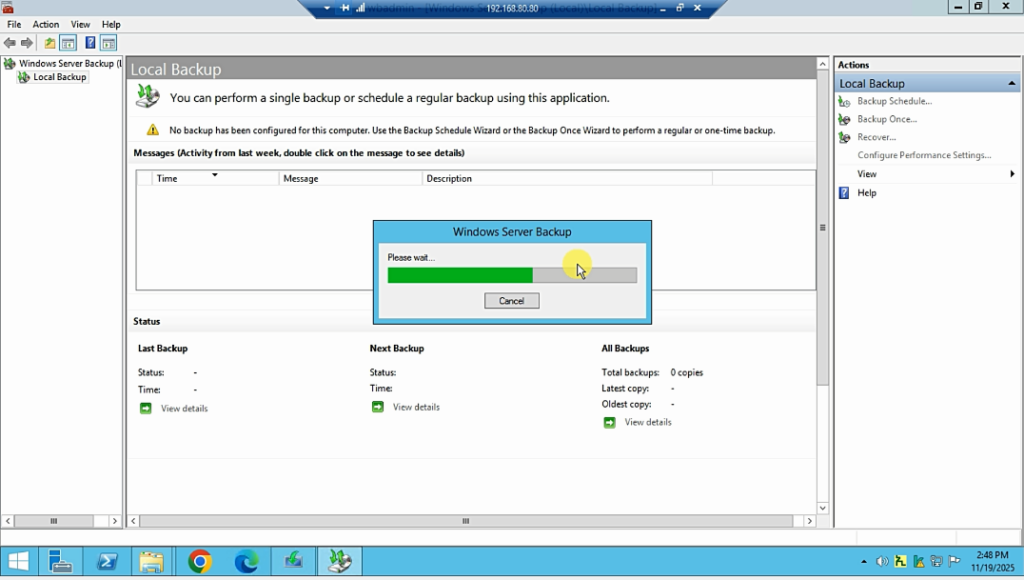
3) Create Full Backup
Never upgrade without backup.
Backup:
✅ System State
✅ Databases
✅ Shared folders
✅ Application files
✅ Virtual machines
✅ Active Directory backup
Backup first = safety first
⏭ Watch Full Video Tutorial
👉Watch the full step-by-step video above to safely upgrade your Windows Server without losing files, applications, or settings.
✅ Step-by-Step: Upgrade Windows Server 2012 R2 to 2019
Step 1) Update Existing Server
Install all available updates on Windows Server 2012 R2.
Why?
Because updates fix upgrade compatibility problems.
Path:
Control Panel → Windows Update
Install everything pending.
Restart.
Step 2) Free Disk Space
Upgrade setup needs room.
Delete:
- temporary files
- logs
- unused ISOs
- old backups stored locally
Aim for 50GB+ free space.
Step 3) Disable Antivirus Temporarily
Some antivirus software blocks upgrade processes.
Temporarily disable:
- third-party antivirus
- aggressive endpoint protection
Re-enable after upgrade.
Step 4) Mount Windows Server 2019 ISO
Insert:
Windows Server 2019 installation media
Open setup.
Run:
setup.exe
Choose:
Upgrade this PC / Keep files and apps
This is critical.
Do NOT choose clean installation if keeping data.
Step 5) Choose What to Keep
Select:
✅ Keep personal files
✅ Keep applications
✅ Keep Windows settings
This preserves:
- data
- installed programs
- roles
- configurations
Step 6) Start Upgrade
Click:
Install
The system restarts several times.
Upgrade may take:
30 minutes to several hours
depending on:
- hardware speed
- server roles
- storage performance
Do not interrupt power.
Step 7) Verify Server Roles
After installation, check:
- Active Directory
- DNS
- DHCP
- IIS
- Shared folders
- Group Policy
- Hyper-V
Confirm all services run correctly.
Step 8) Install Latest Updates
Immediately update Windows Server 2019.
This improves:
✅ security
✅ performance
✅ stability
Step 9) Check Licensing
Activate Windows properly.
Use genuine licensing.
Common Upgrade Problems
Compatibility Error
Usually caused by:
- outdated drivers
- unsupported software
- low disk space
Upgrade Stuck
Possible causes:
- antivirus interference
- damaged system files
- corrupted update cache
Run:
sfc /scannow
DISM /Online /Cleanup-Image /RestoreHealth
Service Failure After Upgrade
Sometimes:
- DHCP stops
- IIS bindings break
- DNS service needs restart
Always verify manually.
🔍 Real IT Experience
In server upgrade projects handled by BlueWave Technology around Bahir Dar, the biggest causes of upgrade failure are:
- skipping backup
- insufficient disk space
- incompatible software
- outdated BIOS/drivers
Proper preparation prevents most problems.
❓FAQ
Will I lose files?
No—if you choose Keep files and apps and have backup.
Can I upgrade directly?
For many setups, yes—but compatibility checks matter.
How long does it take?
Usually 1–3 hours, depending on server workload and hardware.
Should businesses upgrade?
Absolutely.
Security alone makes upgrading worthwhile.
✅ Final Thoughts
Upgrading from Windows Server 2012 R2 to Windows Server 2019 is one of the smartest IT decisions for modern businesses.
Benefits include:
✅ stronger security
✅ improved performance
✅ better reliability
✅ future software compatibility
✅ better virtualization support
👉 ሰርቨር ማዘመን የድርጅት መረጃ ደህንነትን እና ፍጥነትን ያሻሽላል።
Need Professional Server Upgrade Support?
BlueWave Technology provides:
✅ Windows Server upgrades
✅ Backup solutions
✅ Active Directory setup
✅ Network/server troubleshooting
✅ IT consulting for businesses
Keep your infrastructure secure, modern, and reliable.