💻 Introduction
Are you managing a Windows Server and worried about data loss or system failure? 😟
Creating a System State Backup is one of the most important steps you can take to protect your server environment.
A single failure—whether caused by hardware issues, malware, or human error—can damage critical system components like:
- Active Directory
- Registry
- Boot files
- System files
The good news? You can secure your server in just a few steps.
In this guide, you’ll learn how to create a Windows Server System State Backup easily and safely.
👉 ሰርቨር መጠባበቂያ መፍጠር ከዳታ ጉዳት ለመከላከል እጅግ አስፈላጊ ነው።
⚠️ What is System State Backup?
System State Backup is a special type of backup in Windows Server that saves critical system components.
It includes:
- Active Directory (Domain Controllers)
- Windows Registry
- Boot files
- System files
- Certificate Services (if installed)
👉 This backup allows you to restore your server to a working state in case of failure.
🎯 Why System State Backup is Important
Without a proper backup, recovering a server can be difficult or even impossible.
Benefits:
- Protects critical server configuration
- Enables fast recovery
- Prevents data loss
- Essential for business continuity
👉 ካልተቀመጠ መጠባበቂያ ዳታ ሙሉ በሙሉ ሊጠፋ ይችላል።
⏭ Watch Full Video Tutorial
🚀 How to Create System State Backup (Step-by-Step)
1. Install Windows Server Backup Feature
Before starting, make sure the backup tool is installed.
📍 Steps:
- Open Server Manager
- Click Add Roles and Features
- Select Windows Server Backup
- Click Install
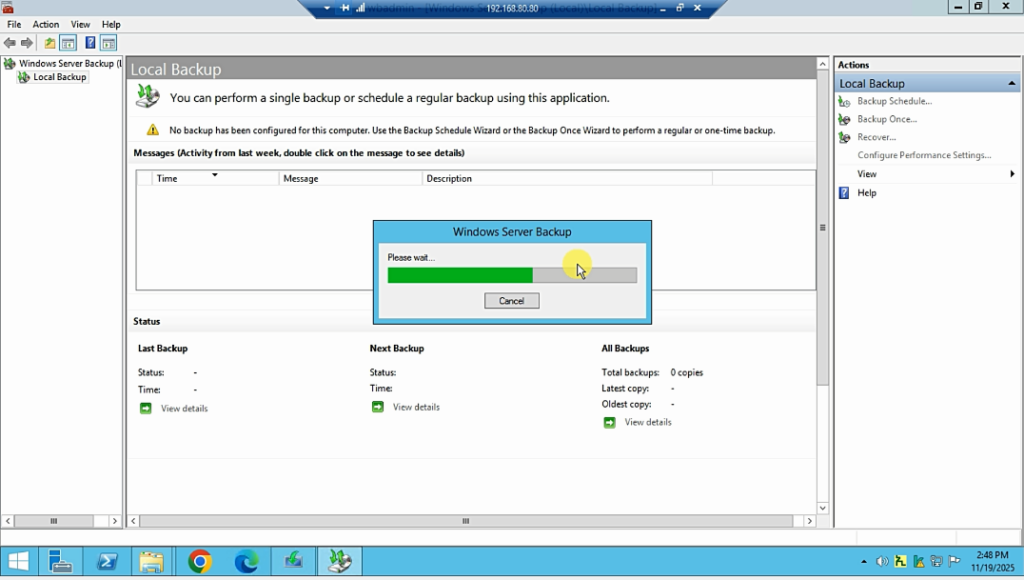
2. Open Windows Server Backup
📍 Steps:
- Go to Tools → Windows Server Backup
3. Start Backup Wizard
- Click Backup Once
- Choose Different options
- Click Next
4. Select Backup Configuration
Choose:
👉 Custom
Then click Add Items
5. Select System State
✔ Check System State
Click OK
6. Choose Backup Destination
You can save backup to:
- Local disk
- External drive
- Network location
👉 Recommended: Use external or network storage for safety.
7. Start Backup
Click Backup and wait for the process to complete.
⏱️ Time depends on server size.
🔄 How to Restore System State Backup
Steps:
- Open Windows Server Backup
- Click Recover
- Select backup location
- Choose System State
- Follow restore wizard
⚠️ Note: Server restart may be required.
🔍 Real-Life IT Experience (Ethiopia)
From real server support cases:
Common problems include:
- No backup configured
- Server crash due to power issues
- Virus attacks
👉 In many cases, lack of backup caused complete data loss.
But when System State Backup was available, recovery was fast and successful.
❓ FAQ
1. How often should I perform System State Backup?
At least once a week or after major changes.
2. Can I restore to a different server?
Yes, but it requires careful configuration.
3. Is System State Backup enough?
It protects system files, but you should also backup full data separately.
✅ Best Practices
- Schedule automatic backups
- Store backups offsite
- Test backup regularly
- Combine with full server backup
✅ Conclusion
A Windows Server System State Backup is not optional—it’s essential.
It protects your server’s most critical components and ensures fast recovery when problems occur.
👉 Don’t wait for failure—set up your backup today.
📞 Need Help?
If you need help setting up or managing your server backup system:
👉 BlueWave Technology provides professional server setup, backup, and IT support services to keep your business safe and running smoothly.