Introduction
If you’ve ever had a computer that suddenly refused to start, showed a blue screen, or became so slow that it was almost impossible to use, you’ve probably heard someone say, “You need to reinstall Windows.”
For many people, that sounds complicated and technical. Years ago, reinstalling Windows usually required a DVD. Today, however, most laptops don’t even include DVD drives. Instead, IT technicians and computer repair professionals use USB flash drives to install Windows quickly and efficiently.
At BlueWave Technology, one of the most common computer issues we encounter is a corrupted Windows installation. Sometimes the problem is caused by malware, sometimes by a failed update, and sometimes by accidental system changes. In many of these situations, the solution begins with creating a bootable USB flash drive.
The term “bootable USB” may sound technical, but the concept is actually simple. A bootable USB is just a flash drive that contains Windows installation files and is prepared in a way that allows a computer to start directly from it.
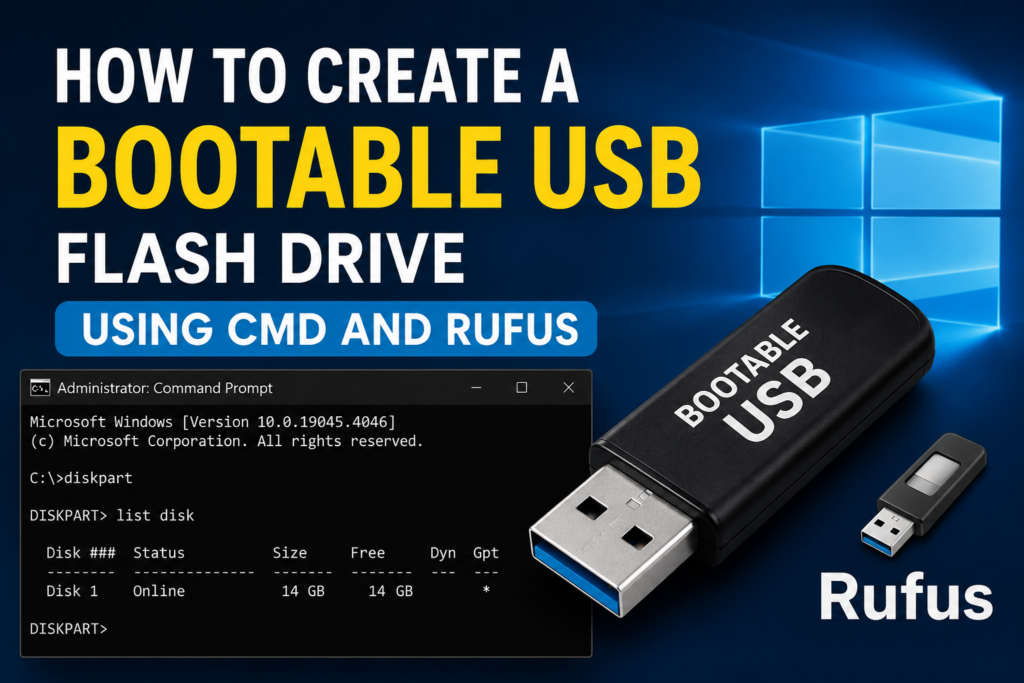
In this guide, we’ll look at two popular ways of creating a Windows bootable USB flash drive. The first method uses Command Prompt (CMD), which is built into Windows and requires no additional software. The second method uses Rufus, a free tool that has become one of the most trusted utilities among IT professionals around the world.
Whether you’re a student, computer user, aspiring technician, or someone who simply wants to learn a useful skill, this guide will help you understand the process from start to finish.
👉 በዚህ መመሪያ ፍላሽ ላይ ዊንዶውስ ለመጫን ሁለት ቀላል መንገዶችን እንማራለን።
What Is a Bootable USB Drive?
Before we begin, it’s important to understand what makes a bootable USB different from an ordinary flash drive.
Normally, a USB flash drive is used for storing files such as documents, videos, music, or photos. A bootable USB, however, contains special system files that allow a computer to start directly from the flash drive before loading the operating system installed on the hard drive.
Think of it as carrying a portable Windows installation in your pocket.
When a computer experiences operating system problems, a bootable USB can be used to:
- Install Windows 10 or Windows 11
- Repair damaged Windows installations
- Access troubleshooting tools
- Recover systems that won’t boot
- Perform a clean installation of Windows
For IT technicians, a bootable USB is one of the most important tools in the toolkit.
What You’ll Need
Before creating your bootable USB drive, make sure you have the following:
A USB flash drive with at least 8GB of storage is recommended. While some older Windows versions may fit on smaller drives, modern Windows installations generally require more space.
You’ll also need a Windows ISO file. This file contains all the installation files required for Windows setup.
Finally, you’ll need a computer with administrator access.
One important thing to remember is that the flash drive will be formatted during the process. Any files stored on it will be erased.
👉 ፍላሹ ውስጥ ያሉ ፋይሎች በሙሉ ይጠፋሉ፤ ስለዚህ አስፈላጊ መረጃዎችን በፊት ያስቀምጡ።
⏭ Watch Full Video Tutorial 👇
🎥 This video demonstrates the full process of making a bootable USB using CMD and Rufus
Method 1: Creating a Bootable USB Using CMD
Many people don’t realize that Windows already includes powerful tools for preparing storage devices.
One of these tools is DiskPart, a command-line utility used to manage disks and partitions.
To begin, connect your USB flash drive to the computer. Next, open Command Prompt as Administrator.
Once the command window appears, type:
diskpart and press Enter. This launches DiskPart.
The first thing you’ll want to do is identify your USB drive. Type:
list disk and press Enter.
Windows will display all connected storage devices.
Take a moment to carefully identify your flash drive based on its size. This step is extremely important because selecting the wrong disk could result in data loss.
After identifying the USB drive, select it by typing:
select disk X Replace X with the correct disk number.
Once selected, type:
clean
This command removes existing partitions and prepares the drive for a fresh setup.
Next, create a new partition:
create partition primary
Then select it:
select partition 1
Now activate it:
active
The next step is formatting the drive:
format fs=ntfs quick
After formatting, assign a drive letter:
assign
Finally, type:
exit to leave DiskPart.
At this point, the USB drive is ready. The remaining step is to mount the Windows ISO file and copy all installation files to the flash drive.
Although this method requires several commands, it helps you understand how Windows storage devices work behind the scenes.
For technicians and advanced users, this knowledge can be extremely valuable.
Method 2: Creating a Bootable USB Using Rufus
While CMD is powerful, most people prefer Rufus because it simplifies the process significantly.
Rufus is a free utility designed specifically for creating bootable USB drives. It automates many of the technical steps and reduces the possibility of user errors.
After downloading Rufus, connect your USB drive and launch the application.
The software will automatically detect your flash drive.
Next, click the Select button and choose your Windows ISO file.
Once the ISO file is selected, Rufus will automatically configure many settings.
You may notice options such as GPT and MBR.
Generally speaking:
GPT is recommended for modern computers using UEFI.
MBR is commonly used for older systems that use Legacy BIOS.
If you’re installing Windows 11 on a modern machine, GPT is usually the correct choice.
After verifying the settings, click Start.
Rufus will warn you that the USB drive will be formatted.
Confirm the process and wait.
Depending on your computer and USB drive speed, the process may take several minutes.
When the status changes to READY, your bootable USB drive is complete.
For beginners, Rufus is often the fastest and easiest solution.
Which Method Should You Choose?
The answer depends on your experience level.
If you’re learning computer repair and want to understand disk management, the CMD method is excellent because it teaches you how partitions and storage devices work.
If your goal is simply to create a bootable USB quickly and reliably, Rufus is usually the better option.
At BlueWave Technology, both methods are used depending on the situation. Rufus is often preferred for speed, while CMD remains useful when troubleshooting complex disk issues.
Common Problems and Solutions
One of the most common mistakes is selecting the wrong disk in DiskPart. Always double-check the disk number before using the clean command.
Another issue is using a corrupted ISO file. If Windows installation fails repeatedly, consider downloading a fresh ISO image.
Some users also experience boot problems because the computer’s BIOS is configured incorrectly. In these cases, entering BIOS and adjusting the boot order usually resolves the issue.
A small number of older computers may require Legacy BIOS settings instead of UEFI.
If the USB drive is not detected during startup, try another USB port or recreate the bootable media.
Real-World Experience
In many of the computer repair jobs we handle, customers initially believe their hardware has failed. However, a significant percentage of issues are actually related to damaged Windows installations.
Recently, a customer brought in a laptop that would not load Windows after a failed update. The machine continuously restarted during boot.
Using a Rufus-created Windows installation USB, we performed a clean installation and restored the system to normal operation.
This is one reason every computer technician should know how to create bootable media. It solves problems that might otherwise seem serious or expensive.
Frequently Asked Questions (FAQ)
What size USB flash drive do I need?
An 8GB flash drive is usually the minimum requirement. A 16GB drive is recommended for better compatibility and future use.
Will creating a bootable USB delete my files?
Yes. The process formats the flash drive and removes all existing data.
Which method is easier?
For most users, Rufus is easier because it automates much of the process.
Can I install Windows 11 using Rufus?
Yes. Rufus fully supports Windows 11 installation media creation.
Why won’t my computer boot from the USB drive?
This usually happens because the boot order is incorrect or the USB drive was not created properly.
Can I use the flash drive again later?
Absolutely. You can format it and create a new bootable drive whenever necessary.
Is Rufus free?
Yes. Rufus is completely free and widely trusted by IT professionals.
Conclusion
Learning how to create a bootable USB flash drive is one of the most useful skills for anyone working with computers. Whether you’re reinstalling Windows, repairing a damaged system, or helping someone troubleshoot a computer problem, a bootable USB can save hours of frustration.
Both CMD and Rufus are effective methods. CMD offers greater control and helps build technical knowledge, while Rufus provides speed and simplicity.
No matter which method you choose, understanding how bootable media works will make you more confident when dealing with Windows installation and repair tasks.
👉 በአጠቃላይ፣ ፍላሽ ላይ ዊንዶውስ መጫን ለማንኛውም የኮምፒውተር ተጠቃሚ ጠቃሚ ክህሎት ነው።
Need Professional Computer Support?
If you’re experiencing Windows problems, boot errors, virus infections, or system performance issues, BlueWave Technology can help.
We provide professional:
- Computer Repair Services
- Windows Installation and Recovery
- Virus Removal and System Optimization
- Data Backup and Recovery Solutions
Need help with your office or home network as well?
Visit our Networking Services page for professional network setup, troubleshooting, router configuration, and IT support services.