⚙ Introduction
Is your computer getting slower day by day?
Do programs take too long to open or freeze unexpectedly? 😩
A slow computer can be frustrating—especially when you depend on it for work, study, or running a business. The good news is: you don’t always need to buy a new computer or spend money on expensive upgrades.
In many cases, simple optimizations can significantly improve your system’s speed and overall performance.
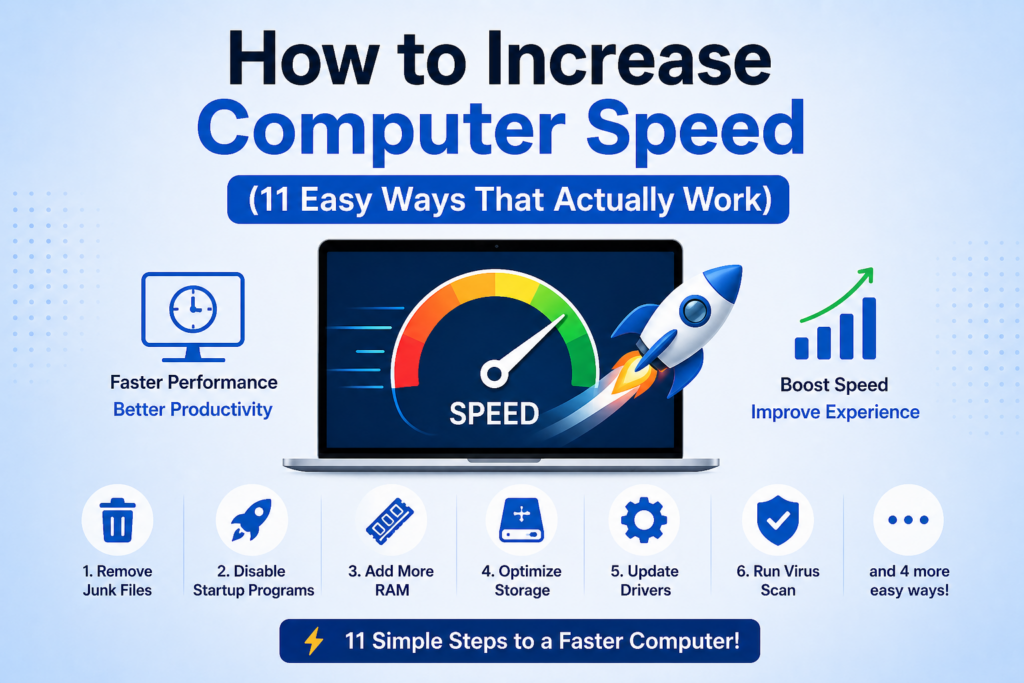
In this guide, you’ll learn 11 practical and proven ways to increase computer speed, especially for Windows users. These methods are based on real-world IT support experience and can make a noticeable difference when applied correctly.
⚠️ Why Do Computers Become Slow?
Before fixing the problem, it’s important to understand what causes it.
Common reasons include:
- Too many startup programs
- Low storage space
- Too many background applications
- Malware or viruses
- Outdated system software
- Old hardware (such as HDD instead of SSD)
👉 ኮምፒውተር ዝቅ እንዲል የሚያደርጉ ነገሮች ብዙ ናቸው—ከማህደር መሙላት እስከ ቫይረስ ድረስ።
⏭ Watch Full Video Tutorial 👇
👉 Watch the video above to learn practical and proven ways to speed up your computer and improve overall performance.
11 Ways to Increase Computer Speed
1. Keep Windows Updated
Keeping your system updated is one of the simplest ways to improve performance and security.
Updates include:
- Bug fixes
- Performance improvements
- Security patches
📍 How to update:
Settings → Windows Update → Check for updates
2. Disable Startup Programs
Many applications automatically start when your computer boots, slowing down startup time.
📍 Fix it:
- Press Ctrl + Shift + Esc
- Go to the Startup tab
- Disable unnecessary programs
👉 This can dramatically reduce boot time.
3. Free Up Storage Space
When your disk is full, your system struggles to function properly.
📍 Clean your system by:
- Deleting temporary files
- Emptying Recycle Bin
- Removing large unused files
You can also use the built-in Disk Cleanup tool.
4. Uninstall Unused Applications
Unused software consumes storage and system resources.
📍 To uninstall:
Control Panel → Programs → Uninstall a program
👉 Removing unused apps = faster performance + cleaner system
5. Enable High Performance Mode
Windows power settings can directly affect performance.
📍 Enable it here:
Control Panel → Power Options → Select High Performance
👉 Especially useful for laptops and older computers.
6. Stop Unnecessary Background Processes
Many apps continue running in the background, consuming CPU and RAM.
📍 Fix:
- Open Task Manager
- Check running processes
- End unnecessary tasks
⚠️ Avoid stopping critical system processes.
7. Scan for Viruses and Malware
Malware is one of the most common reasons for slow performance.
📍 Use:
- Windows Security
- Or trusted antivirus software
👉 Removing malware can instantly improve speed.
8. Disable Background Apps
Some apps run even when you’re not actively using them.
📍 Disable them:
Settings → Privacy → Background Apps → Turn off unused apps
9. Adjust Visual Effects for Better Performance
Windows animations and visual effects use system resources.
📍 Optimize here:
System → Advanced System Settings → Performance →
Select Adjust for best performance
👉 This is especially helpful for older PCs.
10. Enable Hardware-Accelerated GPU Scheduling
This feature allows your graphics card to manage tasks more efficiently.
📍 Enable it:
Settings → System → Display → Graphics Settings
👉 Note: This option may not be available on all systems.
11. Upgrade to an SSD (Biggest Improvement)
If your computer is still using an HDD, upgrading to an SSD is the most powerful performance upgrade you can make.
Benefits:
- Faster boot time
- Faster application loading
- Smoother overall performance
👉 SSD መጠቀም ኮምፒውተርዎን በጣም ያፋጥናል።
🔍 Real-Life Example (From IT Experience)
In many computer repair cases in Bahir Dar, slow computers are usually caused by:
- Too many startup programs
- Full storage
- Malware infections
After applying just 3–4 of these steps, performance improves significantly—without replacing the computer.
❓ Frequently Asked Questions (FAQ)
1. Why is my computer still slow after restarting?
Because startup programs, background apps, or malware may still be running.
2. Do I need to upgrade RAM?
Not always. Try software optimization first. Upgrade RAM only if necessary.
3. How often should I clean my computer?
At least once every 1–2 months for best performance.
✅ Conclusion
Improving your computer’s speed doesn’t always require expensive upgrades. By applying these simple methods, you can significantly boost performance and enjoy a smoother experience.
Start with basic steps like disabling startup programs and cleaning your storage. If possible, upgrading to an SSD will give you the best long-term results.
👉 A faster computer means:
- Better productivity
- Less frustration
- More efficiency 💻
Need Help?
If you need help repairing or optimizing your computer, BlueWave Technology provides professional computer services to ensure your system runs fast, stable, and efficiently.