
🛠️ Introduction
IIs your internet not working? Are websites failing to load, or is your connection painfully slow? 😩
Network problems are very common—whether you’re browsing at home, running a business, or managing IT systems. In many cases, these issues can interrupt work, reduce productivity, and cause frustration.
The good news? You don’t always need a technician to fix them.
With a few simple network troubleshooting commands, you can quickly identify and solve many common problems on your own—saving both time and money.
👉 ኔትወርክ ችግር ሲኖር ቀላል ኮማንዶች ብዙ ጊዜ ችግሩን ይፈታሉ።
👉 Experiencing slow or unstable internet?
Improve Your Network Performance with Professional Setup from BlueWave Technology
📌 What Are Network Troubleshooting Commands?
Network troubleshooting commands are built-in tools available in:
- Command Prompt (Windows)
- Terminal (Linux/Mac)
They are used to:
- Test connectivity
- Diagnose network issues
- Identify errors
- Fix common problems
These commands give you direct insight into how your network is performing and where the issue might be.
👉 እነዚህ ኮማንዶች የኔትወርክ ሁኔታን ለመመርመር እና ለመጠገን ይረዳሉ።
⚙️ Why You Should Learn These Commands
Learning basic network commands gives you a strong advantage, especially if you work with computers or IT systems.
Key Benefits:
✔ Fix internet issues faster
✔ Understand how your network works
✔ Reduce dependency on technicians
✔ Build valuable IT skills
👉 ችግሮችን በራስዎ መፍታት ይችላሉ።
⏭ Watch Full Video Tutorial 👇
👉 Watch the video above to see these network troubleshooting commands in action and understand how to fix real-world internet issues step by step.
🔑 Essential Network Troubleshooting Commands
Below are the most important commands every beginner should know:
1. 📡 Ping Command
The ping command checks whether your device can communicate with another device or website.
ping google.comWhat It Does:
- Tests connectivity
- Measures response time (latency)
- Shows if a host is reachable
When to Use:
- Internet not working
- Website not loading
👉 ኮኔክሽን ካለ ወይም ከሌለ ያሳያል።
2. 🌍 IPConfig Command
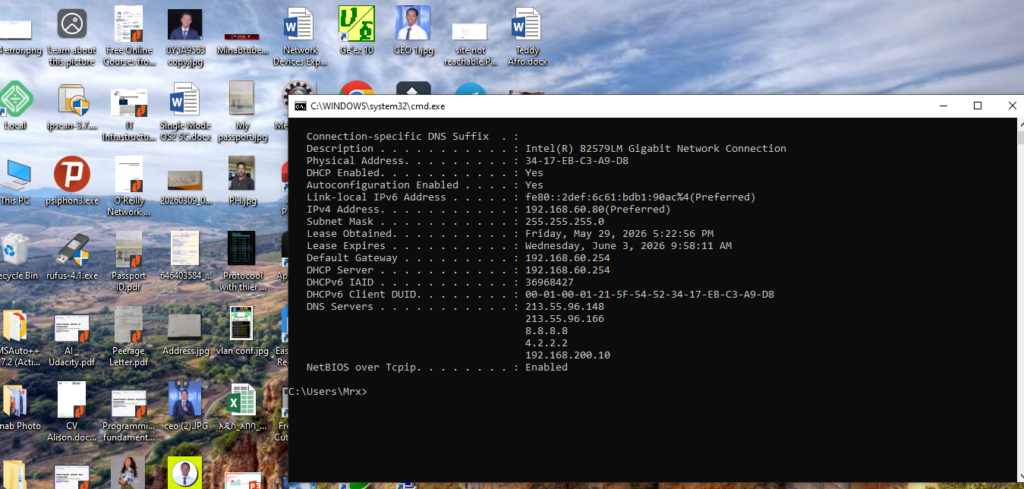
The ipconfig command displays your network configuration.
ipconfigAdvanced Options:
ipconfig /all
ipconfig /release
ipconfig /renew
What It Does:
- Shows IP address
- Displays gateway and DNS
- Helps reset network connection
👉 የኔትወርክ መረጃዎችን ያሳያል።
👉 Struggling with IP or network setup?
Get Professional Network Configuration Support
3. 💻 Hostname Command
Displays your computer’s name on the network.
hostnameWhy It Matters:
- Identifies your device in a network
- Useful in office environments
👉 የኮምፒውተር ስም ያሳያል።
4. 🧭 Tracert Command
The tracert command shows the path data takes to reach a destination.
tracert google.comWhat It Does:
- Tracks route of packets
- Identifies delays
- Detects network bottlenecks
👉 መንገዱ የት እንደሚቆም ያሳያል።
5. 🔌 Netstat Command
Displays active connections and open ports.
netstatUse It To:
- See active connections
- Detect suspicious activity
- Monitor network usage
👉 ኮምፒውተርዎ ከማን ጋር እንደሚገናኝ ያሳያል።
6. 🔍 NSLookup Command
Used to troubleshoot DNS issues.
nslookup google.comWhat It Does:
- Converts domain names to IP addresses
- Helps diagnose DNS problems
👉 የDNS ችግር ለመፍታት ይረዳል።
7. 🧠 ARP Command
Displays IP-to-MAC address mapping.
arp -aWhy It Matters:
- Shows connected devices
- Helps detect unknown devices
👉 ኔትወርክ መሳሪያዎችን ያሳያል።
8. 🚀 Pathping Command
A powerful combination of ping and tracert.
pathping google.comWhat It Does:
- Detects packet loss
- Provides detailed diagnostics
👉 ጥልቅ ምርመራ ያደርጋል።
9. 🔑 Getmac Command
Displays your device’s MAC address.
getmac👉 የመሳሪያዎ ልዩ መለያ ያሳያል።
10. 🖥️ Systeminfo Command
Shows detailed system information.
systeminfo👉 ሙሉ የሲስተም መረጃ ያሳያል።
🌐 Real-Life Troubleshooting Example (Step-by-Step)
Let’s say your internet is not working. Follow this simple process:
ping google.com→ Check connectivityipconfig→ Verify IP addressnslookup google.com→ Check DNStracert google.com→ Identify delaysnetstat→ Check connections
👉 This step-by-step method helps you quickly locate the problem.
👉 በዚህ ዘዴ ችግሩን በፍጥነት መፍታት ይችላሉ።
👉 Still can’t fix the issue?
Let Experts Handle Your Network Troubleshooting
🚀 Pro Tips for Beginners
- ✔ Run Command Prompt as Administrator
- ✔ Start with simple commands
- ✔ Carefully read command results
- ✔ Practice regularly
👉 ልምምድ የተሻለ እውቀት ያመጣል።
⚠️ Common Mistakes to Avoid
- Ignoring basic checks (cables, router, power)
- Running commands without understanding results
- Misinterpreting outputs
- Skipping simple solutions
👉 አንዳንድ ጊዜ ችግሩ ቀላል ሊሆን ይችላል።
❓ Frequently Asked Questions (FAQ)
1. Do I need technical knowledge?
No. Most commands are beginner-friendly.
2. Are these commands safe?
Yes, as long as you avoid changing advanced settings without understanding them.
3. Can these commands fix all problems?
They solve many common issues, but complex problems may require professional help.
✅ Conclusion
Network troubleshooting doesn’t have to be complicated. With the right commands, you can quickly diagnose and resolve many common internet problems on your own.
By learning these tools, you will:
- Save time
- Reduce costs
- Improve your IT skills
👉 በአጠቃላይ፡ እነዚህ ኮማንዶች የኔትወርክ ችግር መፍትሄ ናቸው።
Need Professional Help?
If your network issues persist or you want a reliable and optimized setup, it’s best to work with professionals.
👉Need Book Professional Networking Support Today
Work with BlueWave Technology for:
Fine thanks
It’s great that you are getting thoughts from this paragraph as well as from our
dialogue made at this time.